
Stefan Franke and Prof. Dr. Wolfgang Müller
This tutorial introduces you to the basics of SSH and explains how to establish a secure connection to servers.
At the beginning of the semester, inform Mr. Franke or Mr. Müller of your fixed tandem partner for this course via Slack, and you will be assigned a fixed tandem name and a corresponding subdomain (e.g., isa1.edumake.de).
SSH, or Secure Shell, is a network protocol used for secure network services over an insecure network.
SSH allows authentication using a username and password in its default configuration. However, this simple and intuitive method poses significant security risks. Research the specific disadvantages and dangers of password authentication compared to key-based authentication. Discuss the functionality of key authentication in SSH and why transitioning to key authentication is recommended
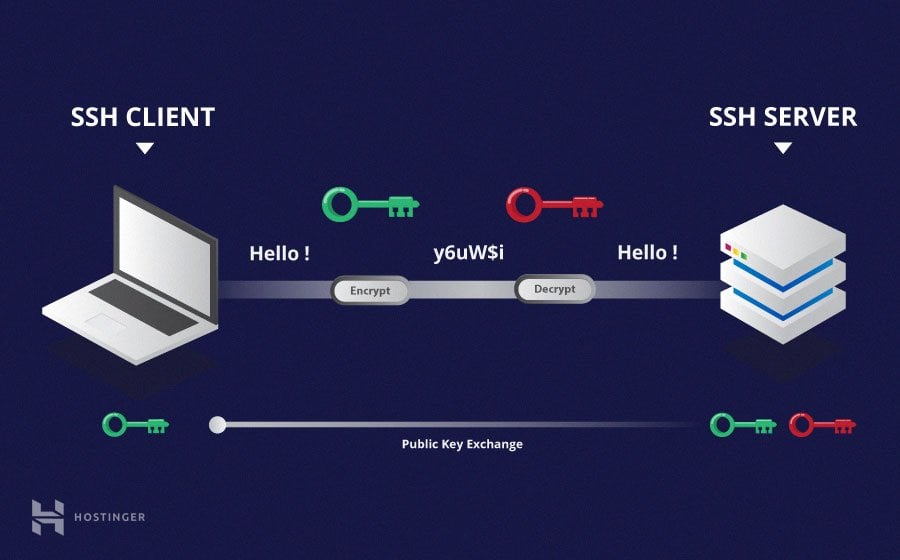
Source: Hostinger
SSH uses key pairs (a public key and a private key) for secure authentication without passwords. On macOS and Unix-like operating systems, you can generate a key pair using the terminal. The command for this is:
ssh-keygen -t rsa -b 2048-t rsa specifies the type of key. RSA is a common encryption method. -b 2048 specifies the key length, here 2048 bits, which is currently considered secure.
The keys are stored by default in the directory ~/.ssh/ under your username on the computer. You can use these keys on multiple devices by securely transferring the private key to the other devices.
To generate an SSH key pair on Windows, you can use the PuTTYgen tool. Here's a step-by-step guide:
Ensure that the private key is stored securely and not lost, as it is essential for accessing your servers.
Send your public SSH key along with your group name via email to Mr. Franke or Mr. Müller to deposit the key on the server.
After submitting your public key, you can establish a secure connection to your assigned server.